
NirSoft utilities: tiny Windows tools that fix big annoyances
Lost your Wi-Fi password? Need your Windows key before a reset? NirSoft has a free tool for that. Each one is tiny. We show you which to use and how to use it safely.
- FreeNo trial, no account
- PortableUnzip and run
- Windows10 and 11
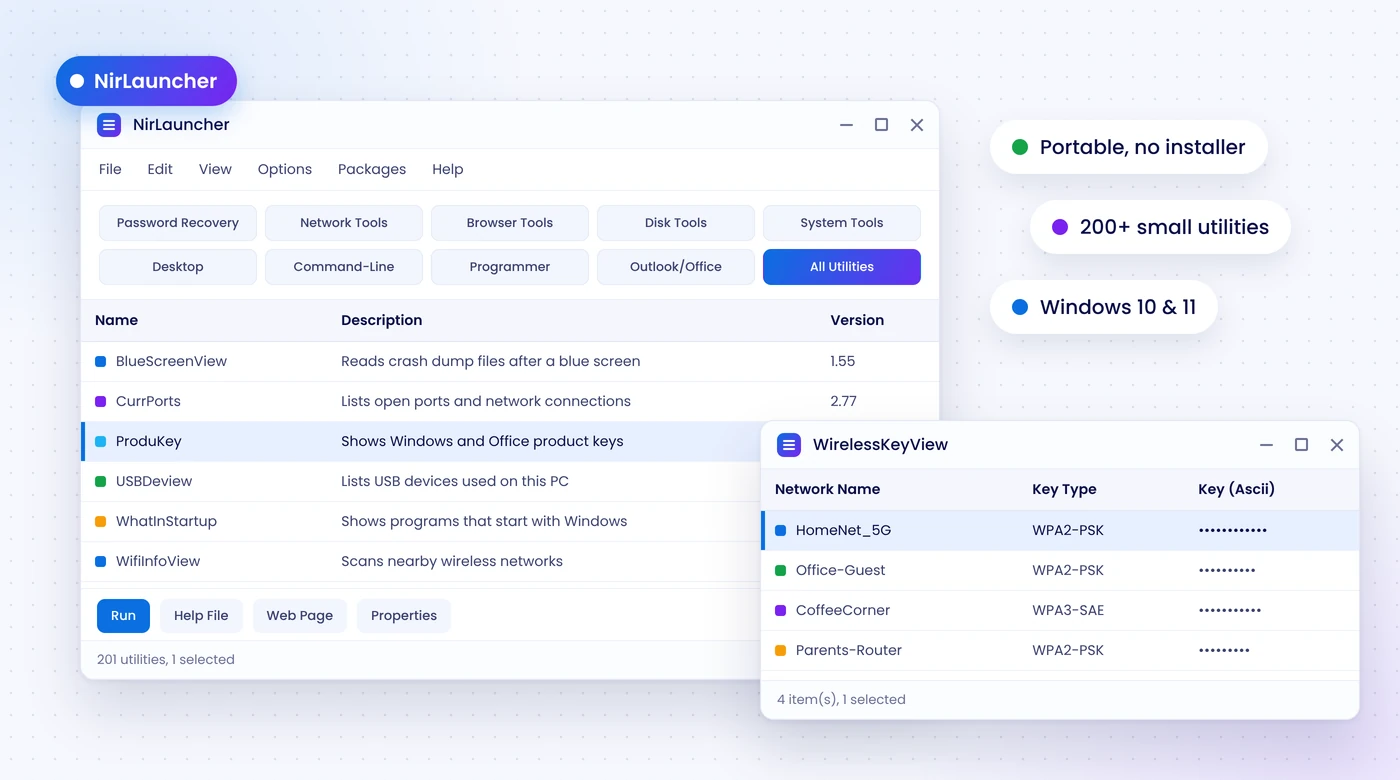
What is NirSoft? Free Windows tools with one job each
NirSoft is a set of small, free tools for Windows. Here is who makes them and what they do.
Nir Sofer has built these tools since the early 2000s. There are now hundreds of them. Most are just one small file.
Each tool does one job. One shows saved Wi-Fi keys. One lists your USB devices. One reads crash files. You open it, and the results show up in a neat table that you can sort and save.
So what is NirSoft? It’s a free toolbox for Windows jobs that would take ages by hand.
Read about usNirSoft noun
A set of free, small Windows tools for fixing, checking and finding things on your PC.
- Developer
- Nir Sofer
- Licence
- Freeware
- Install
- None needed
- Bundle
- NirLauncher, 200+ tools
NirSoft Features That Make Every Tool Easy to Use
You’ll find these four features in almost every NirSoft tool. Learn one tool, and the rest feel easy.
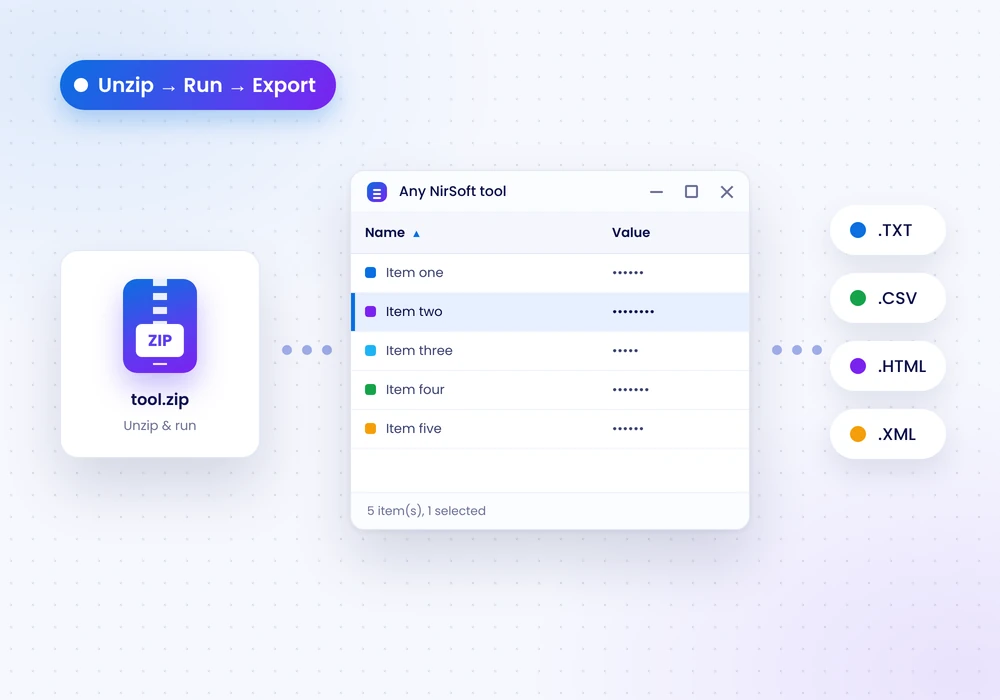
Nothing to install
Each tool is one small file. Unzip it and run it. Delete the folder, and it’s gone.
One job per tool
Each tool does one task well. You never dig through long menus to find what you need.
Sort, search and save
Results show up in a table. Click a column to sort it. Then save the rows as a TXT, CSV, HTML or XML file.
Command-line ready
Most tools take switches like
/stext. That lets you save a report without even opening a window.
All the tools work the same way, so the first one you try teaches you the rest. Keep a few in a folder or on a USB stick, and you’re set for most PC problems.
How NirSoft tools work
Every NirSoft tool works in the same four steps. It doesn’t matter which one you pick.
- 01
Download
Get the ZIP from the author’s page, or use Scoop.
- 02
Unzip
Put it in a folder like
C:\Tools. There’s no setup. - 03
Run as admin
Right-click it and pick Run as administrator.
- 04
Save results
Pick the rows you want. Then use File → Save Selected Items.
NirSoft installation: two easy ways to set it up
You can set up NirSoft tools in two ways. Get one ZIP by hand. Or let Scoop set them up and keep them fresh.
- Pick the 64-bit build on 64-bit Windows
- Keep your tools in one folder
- Delete the folder to remove a tool
# add the NirSoft bucket once
scoop bucket add nirsoft

# install the tools you want
scoop install wirelesskeyview produkey

# update everything later
scoop update *
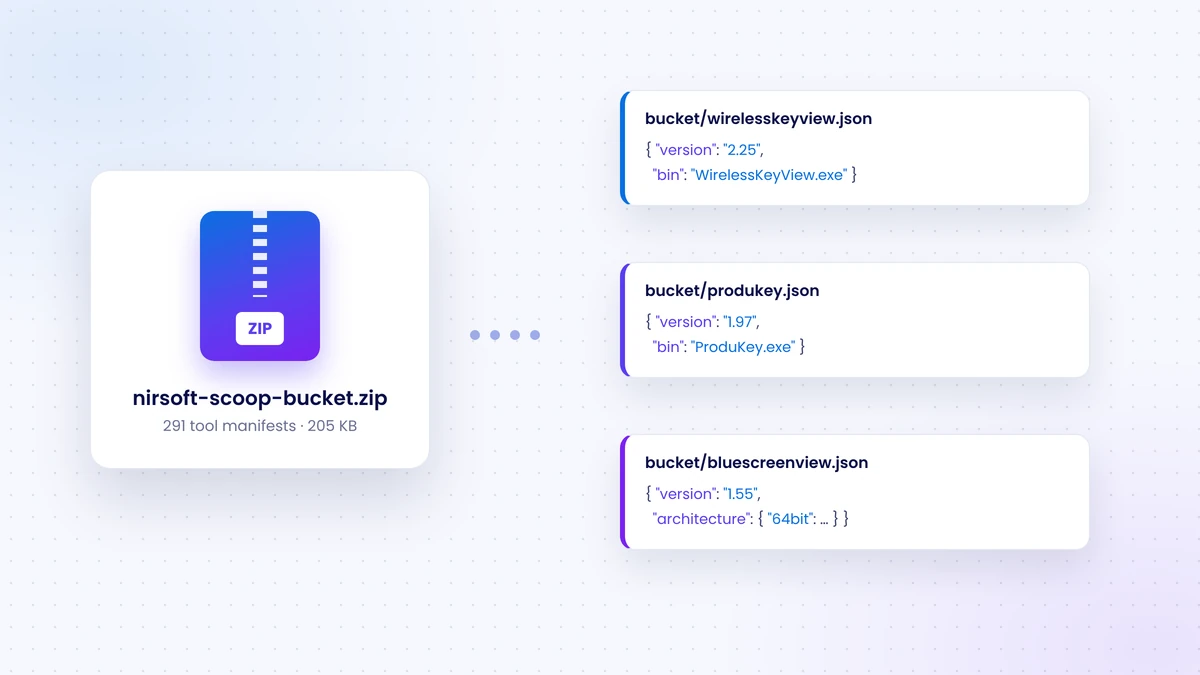
Download the NirSoft Scoop bucket
NirSoft tools are easy to manage when they live in one place. This free ZIP holds the Scoop files for them. With a few short commands, you can install and update almost all of them.
- Contains290+ tool manifests
- FormatZIP archive
- PriceFree
Note: these are setup files for Scoop, not the tools. Need just one tool? Get it from the author’s page.
Where the tools run
These tools are made for Windows only. Here is how each system does.
- Supported
Windows 11 & 10
The main target. Use the 64-bit build for full results.
- Mostly
Older Windows
Many tools still run on 8.1 and 7.
- No
macOS
There is no Mac version.
- No
Linux
There is no Linux build.
- No
Android & iOS
They don’t run on phones.
Each tool gets updates on its own. Check the author’s page for the latest version.
When something looks wrong
Most problems come from one of these four things. Each one has a quick fix.
You may have the 32-bit build, or you skipped admin rights. Try the 64-bit build as admin. Still empty? Then this PC may have nothing saved.
This is common for tools that show passwords. Check where the file came from. Then read our antivirus guide first.
The real tools never come with extras. Delete that copy. Then get a fresh one from the author or from Scoop.
PCs with a digital licence often show a generic key, and that’s fine. The ProduKey guide explains why.
How the tools stay current
There is no big yearly release. Each tool gets fixes when it needs them.
Own version
Each tool has its own version number.
Change notes
Each tool’s page lists what changed.
One command
With Scoop,
scoop update *updates them all.NirLauncher
Get a fresh copy now and then to stay current.
Real moments people reach for it
These real moments send people to NirSoft. Each one has a tool that fixes it.
A new phone needs the Wi-Fi, and the router sticker is gone.
WirelessKeyViewYou want your Office key before you wipe the drive.
ProduKeyYour PC keeps crashing, and you want to know why.
BlueScreenViewAn old NAS login is still saved on your laptop.
Network Password RecoveryYou help friends with their PCs and want your tools on a USB stick.
NirLauncherYou want to know which USB drives were used on this PC.
USBDeview
Your PC, your accounts, nobody else’s
Three short rules keep these tools safe and fair to use.
- Your own PC only. Read your own saved keys. Never use these tools on someone else’s PC without asking.
- Get the real files. Fake NirSoft sites add junk. Use the author’s page or Scoop.
- Guard your exports. A saved list of keys is a password list. Keep it safe, and delete spare copies.
The honest scorecard
No tool is perfect. Here is what you get, and what to watch for.
Why people like it
- Free, with no upsell
- Small and portable
- Every tool works the same way
- Easy to save as CSV, HTML or text
What to watch for
- Antivirus warnings on some tools
- Windows only
- Fake download sites
- Plain look, little help inside
Questions we get a lot
We split the answers into two groups. Pick a topic to see its questions.
Still stuck? Send us a note, and we’ll help.
Contact usNirSoft is a big set of free Windows tools made by Nir Sofer. Each tool does one job, like showing a saved Wi-Fi key. This site explains them. It is not run by NirSoft.
Yes. They are free for home use. There is no trial and no account. Nothing is locked.
No. Unzip the file and open the tool. To remove it, delete the folder. Nothing is left behind.
It holds the Scoop files for NirSoft. They tell Scoop where to get each tool and how to update it. The tools are not in the ZIP.
Windows 11 and 10 work best. Many tools also run on 8.1 and 7. Some new features won’t show on old systems.
No. Every NirSoft tool is made for Windows. There are no versions for other systems.
Get one tool if you have one job to do. Get NirLauncher if you want them all in one window, like on a USB stick.
On 64-bit Windows, use the 64-bit build. The 32-bit one may show an empty list.
Tools that show saved passwords often get a warning. Labels like PUA or HackTool point to what the tool can do. They don’t mean it has a virus.
Lots of people trust the real files. The risk is fake sites that add adware. So get them from the author or from Scoop.
Watch for a setup file in place of a ZIP, extra offers, or a download manager. A trojan or miner warning is a red flag. Delete it and get a fresh copy.
Tools that show passwords usually do, since Windows guards that data. Tools that just list devices often work without it.
You may be on the 32-bit build, or you skipped admin rights. If both are fine, there may be nothing saved on this PC.
No. They only show what this PC has saved. They don’t crack or guess passwords, and they don’t pull them from the web.
Yes, on your own PC and your own accounts. Using them on someone else’s PC without asking is not okay. We don’t help with that.
A file with keys or passwords is a password list. Put it in a password manager or on a private drive. Then delete spare copies.