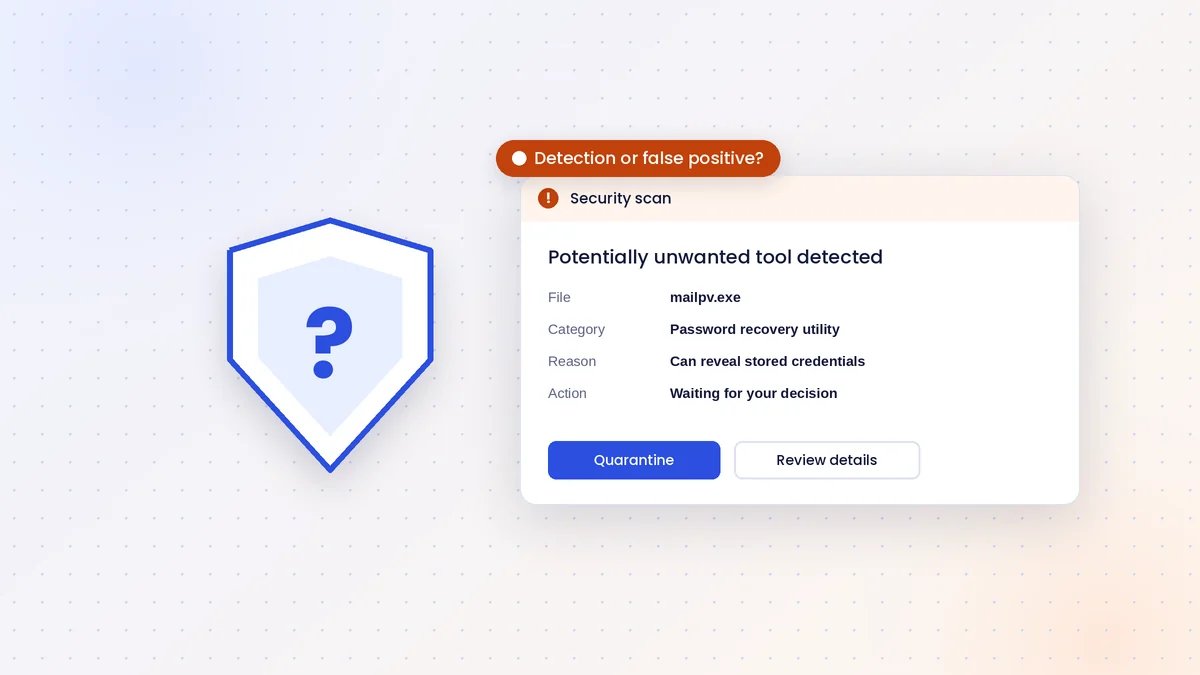
You download a NirSoft tool and your antivirus jumps in. It calls the file a “hack tool” or a “potentially unwanted app”. Should you panic?
Usually not. But you shouldn’t ignore it either. This guide shows you how to make a calm, sensible call.
Why these tools get flagged
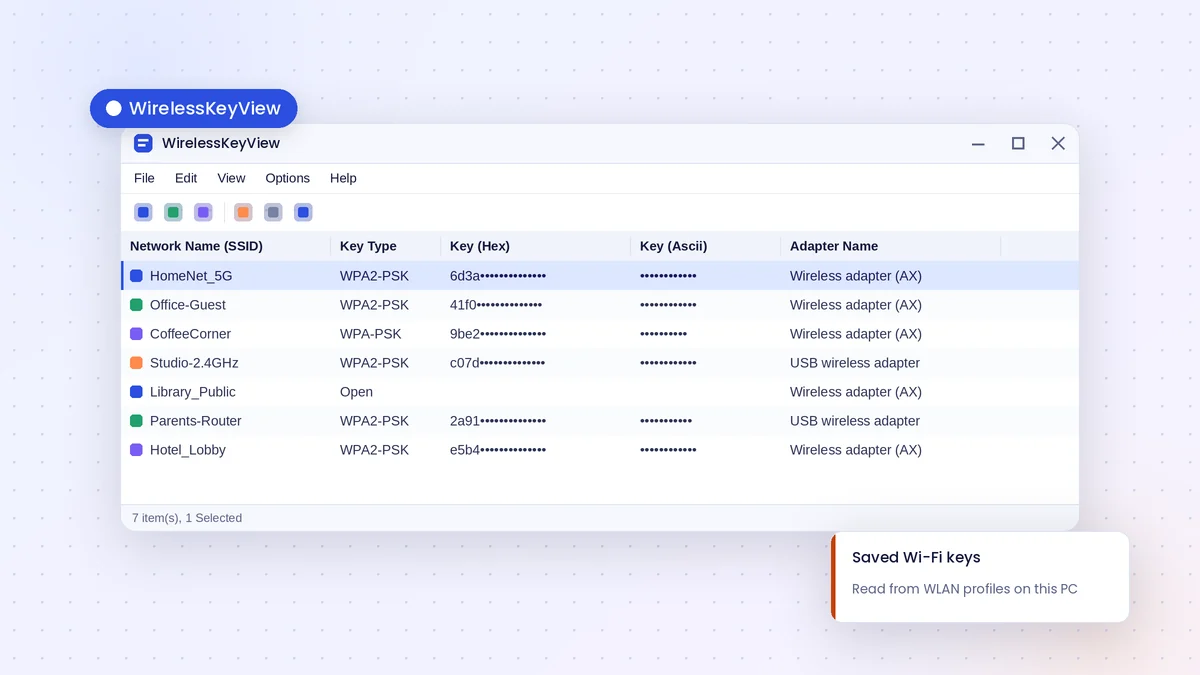
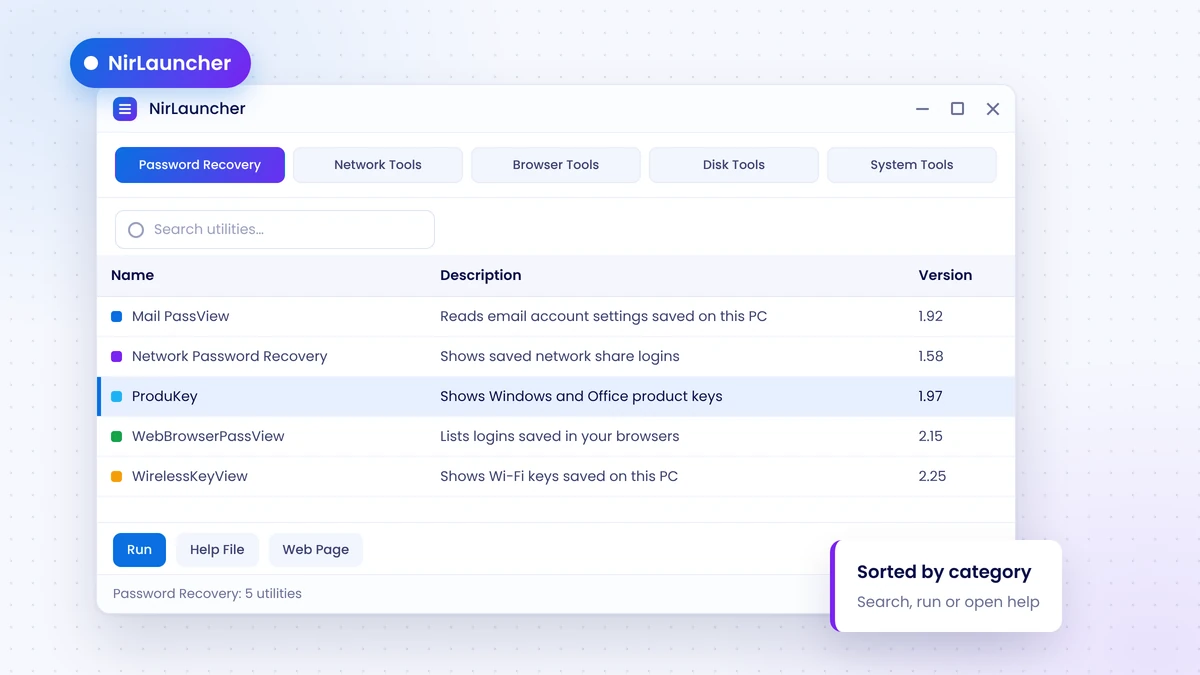
Some NirSoft tools show saved passwords. In your hands, that’s a helpful recovery feature. In a criminal’s hands, the same feature could be misused.
Antivirus software can’t read your intentions. So it flags what the tool is able to do. That’s why you usually see labels like these:
- PUA or PUP (potentially unwanted app or program)
- Riskware
- HackTool
These labels are a warning about what the tool can do. They don’t mean the file is infected.
False alarm or real problem?
Ask yourself three simple questions.
| Question | Probably fine | Be worried |
|---|---|---|
| Where did it come from? | The author’s page or Scoop | A random “free download” site |
| What’s the label? | PUA, Riskware, HackTool | Trojan, Miner, Dropper |
| Did it come with extras? | Just the tool and a help file | Toolbars, “accelerators”, installers |
If any answer lands in the right-hand column, stop. Delete the file and don’t run it.
Get a second opinion
Not sure? Upload the file to a multi-engine online scanner. It checks the file with dozens of antivirus engines at once.
A few engines calling a recovery tool “PUA” is normal. Most engines calling it a trojan is not.
The real danger is fake copies. Popular tools attract copycat sites that wrap them in adware or worse. Most harmful “NirSoft” files come from the wrong website, not from the author.
How to download safely
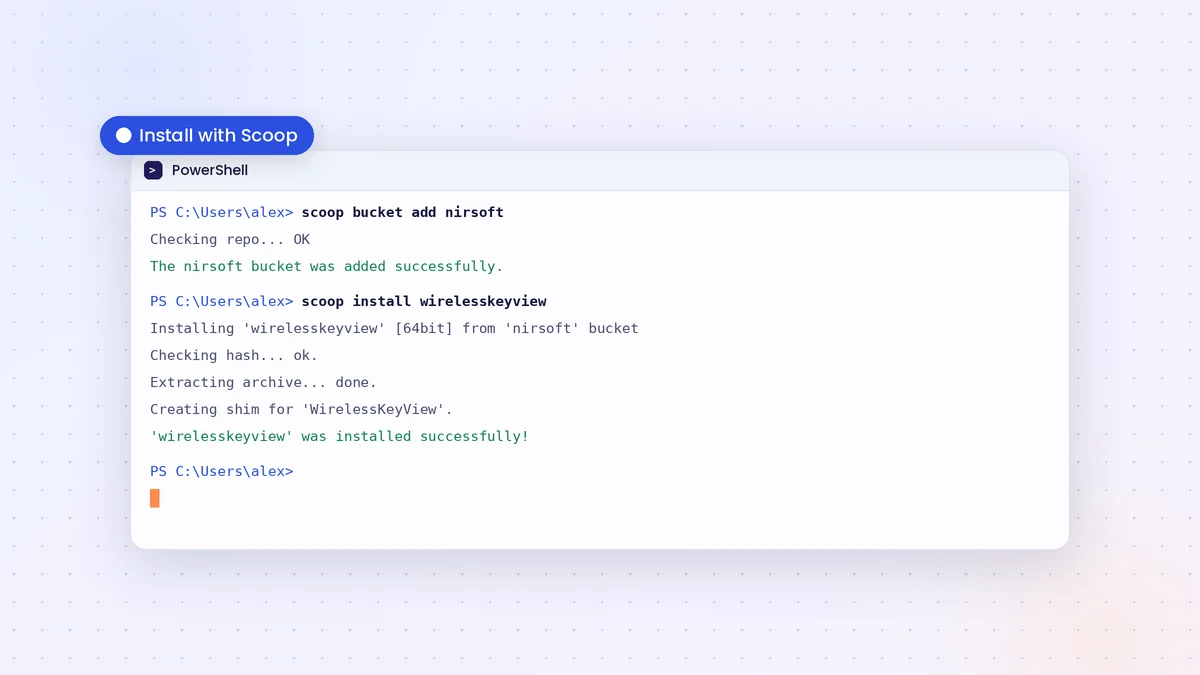
- Get tools from the author’s own page, or from Scoop, which checks file hashes.
- Avoid sites with lots of big green “Download” buttons.
- Skip anything that asks you to install a “download manager” first.
- Keep Windows and your security software up to date.
If you decide to keep the tool
Once you’re sure the file is genuine, you can tell your antivirus to stop blocking it. Do it carefully:
- Add an exclusion for that one file or folder only.
- Never turn off your antivirus completely.
- Remove the exclusion when you no longer need the tool.
Still unsure? Don’t add the exclusion. Delete the file and download a fresh copy from the author.
A note on Windows Security
Microsoft Defender may quietly move the file into quarantine. You’ll find it under Windows Security → Virus & threat protection → Protection history. Only restore it if you’ve checked the source first.
Check the file’s fingerprint
Every file has a hash, a long code that changes if even one byte changes. Comparing hashes tells you if a file was tampered with.
Windows can calculate one for you. Open PowerShell in the download folder and run:
Get-FileHash .\produkey-x64.zip -Algorithm SHA256Compare the result with the hash published by the source. If they match, the file is exactly what was released. Scoop does this check for you on every install.
FAQs
The genuine tools aren’t. Recovery tools get flagged for what they can do, not because they’re infected.
Potentially unwanted app. It’s a caution label, not proof of malware.
If the label says trojan, miner or dropper, or the download came with extras, delete it.
Only for one file you trust, from the right source. Never switch protection off entirely.
In Windows Security under Virus & threat protection, then Protection history.
Conclusion
An antivirus warning on a NirSoft recovery tool is usually a false positive, triggered by what the tool can do rather than any infection. Check the source, read the label and look for unwanted extras. If anything feels off, delete the file and download a fresh copy from the author or through Scoop instead. Comparing the file hash is a quick final check if you want some extra peace of mind.