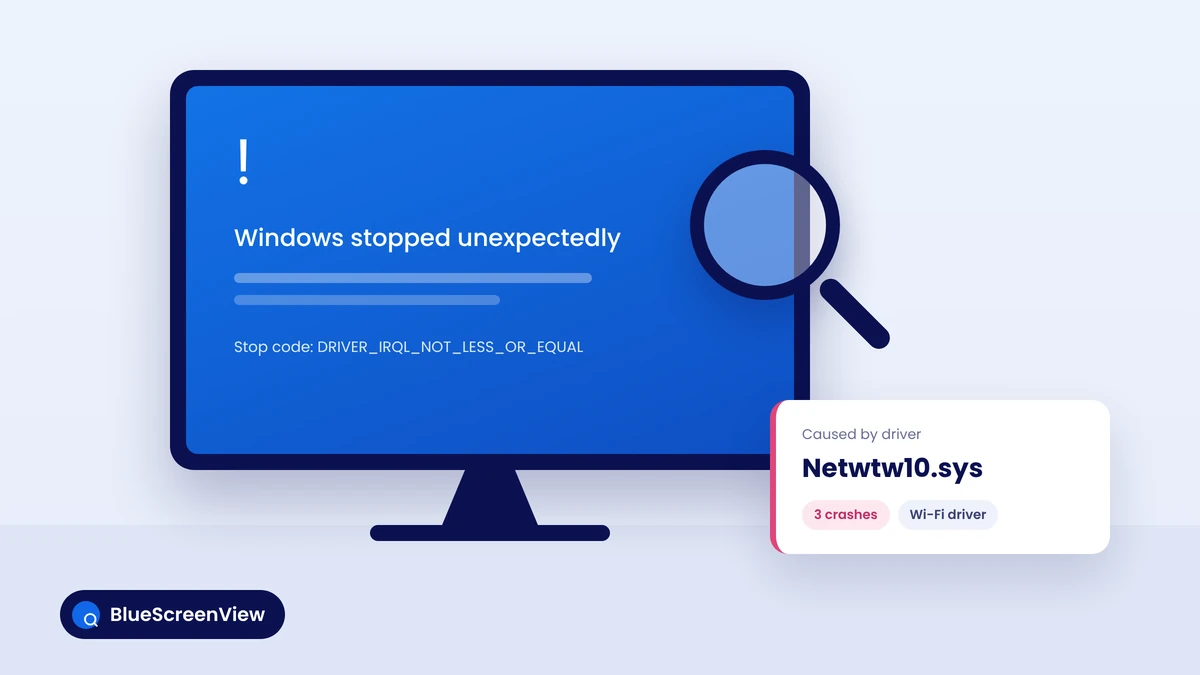
Your screen turns blue, a sad face appears, and the PC restarts. By the time Windows is back, the error code is gone. Frustrating, right?
Windows usually saves a small crash file each time this happens. BlueScreenView reads those files and shows you what went wrong, in a simple table.
What BlueScreenView does
After a crash, Windows writes a minidump file. It’s a short record of what the system was doing at that moment. These files live in C:\Windows\Minidump.
BlueScreenView opens every minidump in that folder. For each crash, it shows:
- The date and time of the crash
- The bug check name, such as
IRQL_NOT_LESS_OR_EQUAL - The driver that was most likely involved
- The driver’s version and company
The lower panel lists all drivers loaded at the time. The ones linked to the crash are highlighted in pink.
How to use it
- Get BlueScreenView, either as a ZIP from its author or through Scoop.
- Extract the files, right-click
BlueScreenView.exeand pick Run as administrator. - The crash list loads on its own. The newest crash is usually at the top.
- Click a crash. Look at the Caused By Driver column.
- Check the pink rows in the lower panel for more clues.
Tip: look for patterns. If the same driver shows up in several crashes, that’s your best lead.
If the list is empty
Windows might not be saving minidumps. Here’s how to turn them on:
- Press Win + R, type
sysdm.cpland press Enter. - Open the Advanced tab, then click Settings under Startup and Recovery.
- Under Write debugging information, choose Small memory dump.
- Click OK. The next crash will be saved.
Disk cleanup tools sometimes delete old dumps too. If you just ran one, that may be why the folder is empty.
What the results often point to
| Driver file looks like | Often related to | Try this |
|---|---|---|
nvlddmkm.sys, amdkmdag.sys | Graphics card driver | Update or reinstall the graphics driver |
Netwtw*.sys, rt640x64.sys | Wi-Fi or network adapter | Get the latest driver from the PC maker |
ntoskrnl.exe | Windows core (often a symptom, not the cause) | Check memory and other drivers listed |
| Antivirus driver | Security software | Update it, or test with it removed |
What to do next
- Update the driver named in the crash. Get it from your PC maker or the hardware maker.
- Undo recent changes. Did crashes start after new hardware or an update? Roll it back.
- Test your memory. Search for Windows Memory Diagnostic in the Start menu and run it.
- Check the drive. Run
chkdsk /scanin an admin Command Prompt.
Sharing a report for help
Asking on a forum? Select the crash and use View → HTML Report - Selected Items. It gives helpers the details they need, without sending the whole dump file.
Common bug check names
The bug check name gives a hint about the type of problem. Here are some you’re likely to see:
| Bug check | Often points to |
|---|---|
MEMORY_MANAGEMENT | Faulty RAM or a bad driver |
DPC_WATCHDOG_VIOLATION | Storage drivers or SSD firmware |
CRITICAL_PROCESS_DIED | A key Windows process stopped, often from damaged system files |
KMODE_EXCEPTION_NOT_HANDLED | A driver that crashed in kernel mode |
If damaged system files are suspected, run sfc /scannow in an admin Command Prompt.
FAQs
No. It shows what was involved so you know what to fix.
Usually in C:\Windows\Minidump.
That’s the Windows core. It’s often where the crash showed up, not the real cause. Look at other listed drivers.
Yes. It only reads crash files. It doesn’t change anything on your PC.
Windows may not be saving small memory dumps. Turn them on in Startup and Recovery settings.
Conclusion
BlueScreenView turns a scary blue screen into something you can act on. It reads the crash files Windows already saved and points to the driver most likely involved. Look for the same driver across several crashes, update it, and test your memory and drive if problems keep coming back after that. If system files seem damaged, a quick sfc /scannow in an admin window is worth running too.