When you open a shared folder or a NAS drive, Windows often asks for a username and password. If you tick Remember my credentials, it saves them so the share opens on its own next time.
That’s handy, until you need the password on a new computer and nobody remembers it. Network Password Recovery, also called netpass.exe, shows you those saved logins.
What counts as a saved network login
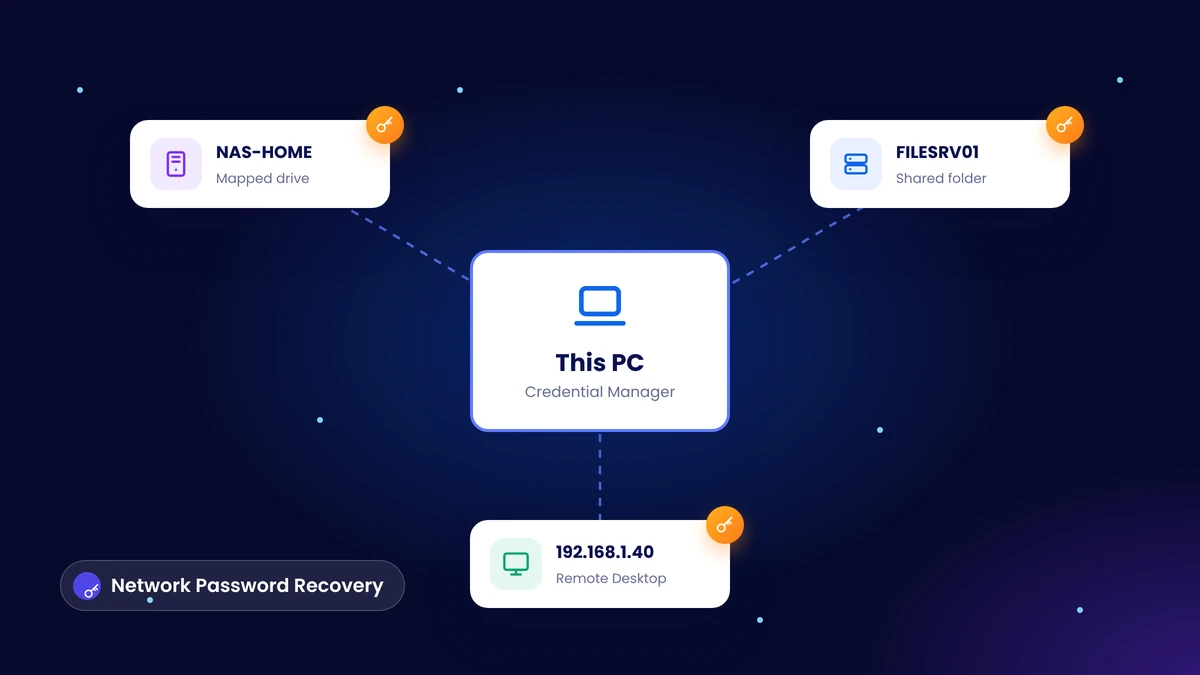
Windows keeps these logins in Credential Manager. You can find it in Control Panel. Most entries come from:
- Mapped network drives and shared folders
- NAS boxes on your home network
- Remote Desktop connections where you saved the password
- Some apps that store logins through Windows
Credential Manager lists these entries, but it won’t show the passwords. Netpass shows the password next to each one. It only reads the account you’re signed in with, on this PC.
How to read the list
The Item Name column can look strange at first. Here’s what the common ones mean:
| Item name looks like | What it usually is |
|---|---|
Domain:target=FILESRV01 | A saved login for a shared folder on that computer |
TERMSRV/192.168.1.40 | A saved Remote Desktop password for that address |
LegacyGeneric:target=… | A login saved by another app |
How to run it
- Get netpass from its author. It’s also in the Scoop bucket.
- Extract the ZIP into a folder you’ll find again.
- Double-click
netpass.exe. Run it as administrator if some entries look blank. - Sort by Item Name or Last Written to find what you need.
Clean out old logins
Honestly, the best use of netpass isn’t reading passwords. It’s seeing every network login your PC is still holding. Old servers, a NAS you sold, a friend’s PC you connected to once. They can sit there for years.
- Sort by Last Written to spot logins you haven’t used in a long time.
- Open Control Panel → Credential Manager → Windows Credentials.
- Remove the entries you don’t need there. That’s the safe place to delete them.
- Run netpass again to check the list is shorter.
Why bother? Fewer saved passwords means less to lose if a laptop goes missing.
Save a copy before a rebuild
About to reinstall Windows? Export your list first so you can set up the same connections later. Use File → Save Selected Items and pick text, CSV, HTML or XML.
This file is a list of passwords. Keep it somewhere private and delete it once your new PC is set up.
A few good habits
Only run netpass on computers you own or manage. Don’t leave exports on the desktop. If you find a login you don’t recognise, delete it and change that password.
Saved Remote Desktop logins
Remote Desktop is a common source of forgotten logins. When you tick Remember me in the connection window, Windows stores the password under a TERMSRV/ entry.
To clear one, open the Remote Desktop app, pick the computer name and click the delete link under the saved user. Or remove the matching TERMSRV entry in Credential Manager. Run netpass afterwards to make sure it’s gone.
This matters most on shared or work laptops. A saved login lets anyone at the keyboard connect without typing a password.
FAQs
It’s the program file for NirSoft Network Password Recovery. It shows network logins saved in Windows.
No. It reads the account you’re signed in with on this PC.
No. It only shows them. Delete old ones in Credential Manager.
Some entries don’t store a password, or need admin rights. Try running it as administrator.
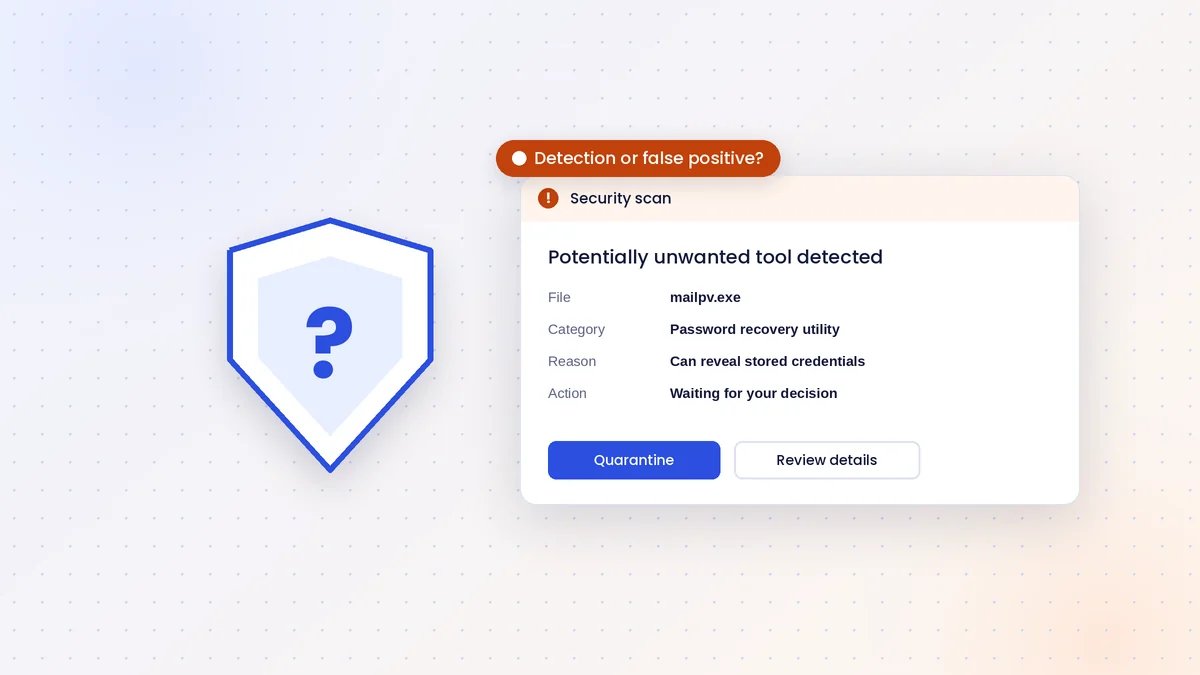
Possibly. Password tools often get a “PUA” label. Check the file’s source first.
Conclusion
Network Password Recovery gives you a clear view of every network login Windows has saved for your account. Use it to find a forgotten NAS or Remote Desktop password, then clean out old entries in Credential Manager. Keep any export private, and run the tool only on machines you own or manage yourself. A short list of saved logins is safer, so a yearly clean-up is a smart, simple habit.