Your PC takes ages to start, and a dozen icons pop up near the clock. Sound familiar? Many programs quietly add themselves to Windows startup.
WhatInStartup lists every one of them in one place. You can then turn off the ones you don’t need.
What WhatInStartup shows
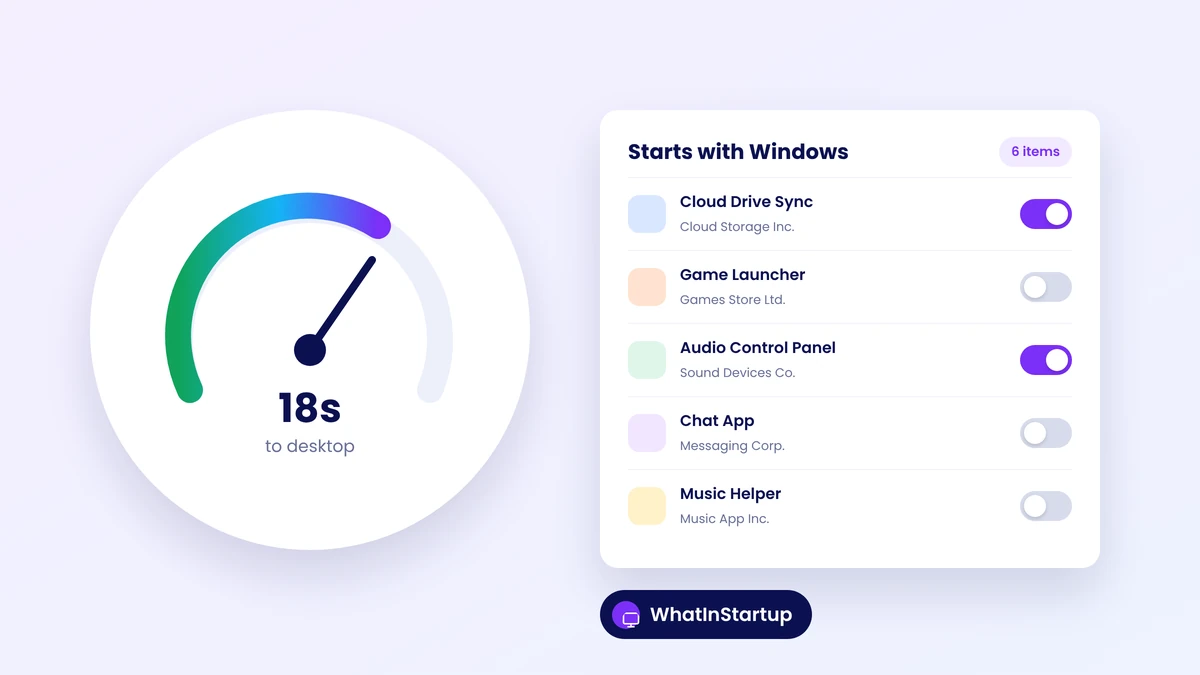
Programs can start with Windows from several hidden places, like the registry and startup folders. WhatInStartup checks them all. For each entry, you’ll see:
- The program name and description
- The company that made it
- Where the startup entry is stored
- The full command that runs
- Whether it’s enabled or disabled
How to use it
- Save the WhatInStartup ZIP to your PC, or add it through Scoop.
- Extract it and start
WhatInStartup.exewith Run as administrator. - Sort by Product Name or Company to find things fast.
- Right-click an entry you don’t need and choose Disable Selected Items.
- Restart your PC and see the difference.
Disable first, delete later. Disabling is easy to undo. Only delete an entry once you’re sure you won’t miss it.
What’s usually safe to turn off
| Usually safe to disable | Keep enabled |
|---|---|
| Game launchers and stores | Antivirus and security software |
| Music and video apps | Touchpad and keyboard drivers |
| Updaters for apps you rarely use | Graphics and audio control panels |
| Chat apps you open by hand | Cloud backup you rely on |
Not sure what something is? Check the Company column and search the file name before you touch it.
How it compares to Task Manager
Windows Task Manager has a Startup tab too. Press Ctrl + Shift + Esc to open it. It’s fine for the basics.
WhatInStartup goes further. It shows the exact command and location of each entry, and can export the list. It also lets you disable entries for other users when run as admin.
Save a list before you change things
Before you disable anything, save a copy of the list. Use File → Save Selected Items. If something stops working, you’ll know exactly what was there before.
Still slow after cleaning up?
- Check free space on your system drive. Aim for at least 15 percent free.
- Run Windows Update and restart.
- If you still use a hard drive, moving to an SSD makes the biggest difference.
Spotting entries that don’t belong
Most startup entries are harmless. A few signs suggest a closer look:
- The Company column is empty
- The program runs from a
TemporAppDatafolder with a random name - You don’t remember installing anything with that name
Disable it first, then scan your PC with Windows Security. If nothing breaks after a few days and the scan finds a problem, delete the entry.
FAQs
Yes, for apps you don’t need right away. Keep security software and hardware drivers on.
Yes. Right-click the entry and choose Enable Selected Items.
No. It only stops it starting with Windows. The program stays installed.
It shows more locations, the exact command and lets you export the list.
Yes, you can open it by hand any time. It just won’t launch at sign-in.
Conclusion
WhatInStartup shows every program that launches with Windows, including some that Task Manager misses. Save a list first, then disable the apps you don’t need right away, like game launchers and rarely used updaters. Keep security tools and drivers switched on, restart your PC, and enjoy a quicker, quieter start to your day. Run a Windows Security scan on anything that looks odd or unfamiliar.